
This article demonstrates how to configure a new billing schedule in the desktop software.
Click Setup > Billing Setup.
Configure any/all Billing Scheme Settings and click OK.
|
Billing Scheme Tabs |
Description |
|
General |
Update General Office Information and various customization options |
|
Form Billing |
Adjust pricing options (base quantity, base price, and per item) per form (Federal & State) |
|
Worksheet |
Adjust pricing options (base quantity, base price, and per item) per worksheet (Federal & State) |
|
Line Items |
Adjust pricing options (base quantity, base price, and per item) per line item (Federal & State) |
|
Discounts |
Update any existing discount options or add new discounts to be applied to billing scheme |
|
Custom Charges |
Update any existing custom charges or add new custom charges to be applied to billing scheme |
|
Custom Settings |
Update custom office information |
FORM BILLING TAB
Per Item - the charge for each instance of the form that appears in the return will be added to the invoice. For example: If there is a Per Item charge for the Schedule C, each instance of a schedule C will cause the charge for that form. If two schedules C are in the return, then the Schedule C form will be listed and charged twice on the Invoice.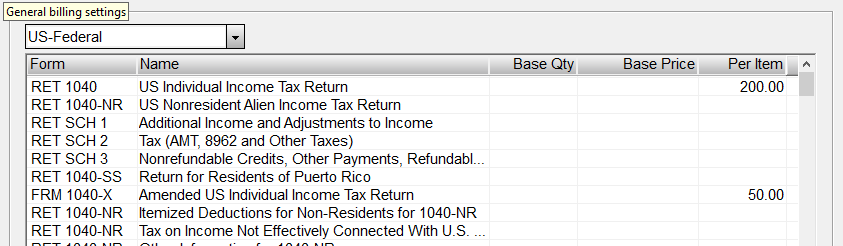
Base Quantity/Base Price
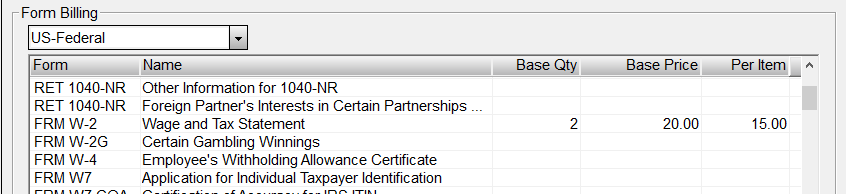
Often a taxpayer will present with multiple W2s or 1099 Forms. The Base Quantity will set a number that is allowed for a Base Price. Any additional forms will incur a Per Item charge in excess of the initial 2 allowed for the Base Price.
For example, the initial 2 W2 Forms may incur a charge of $20.00. Additionally, for every W2 in excess of the base quantity of 2, there will be a Per Item charge of $15.00 each.
Example:
A basic tax return with four (4) W2 forms would be charged:
$200.00 for the 1040
$20.00 for the first two (2) W2 forms
$30.00 for the additional W2 forms - (2) at $15.00 per item
If those were the only forms being charged for in the return, the total amount of this return with four (4) W2s would be $250.00.
Save and Set the Billing Schedule as the Default Billing
Once a billing schedule is configured, click OK and provide a name for the schedule. When asked, you should choose to set the schedule as a default.
To change the Default Billing in the Setup, go to Setup, then Office Setup, and choose the Defaults Tab. Choose the correct billing in the dropdown under 1040 billing at the bottom of the window.
Please note: If returns were created prior to creating a billing schedule and/or setting a default, those returns will need to have the billing reloaded in each one individually. After the billing is reloaded, the fees will appear on the Invoice in the return based on the current default billing schedule.