
Adding a Remote Signature
The following steps are provided to add a remote signature for a paid preparer:
1. Inside of the software, open the Database menu, then Paid Preparers.
2. When the "Paid Preparers" window is open, select the preparer wished to add a remote signature for, then choose Edit.
3. When the "Paid Preparer Information" window opens, closely check that the cell number and cell phone carrier information is correct. Click the RemoteSign Button in the lower portion of the window.
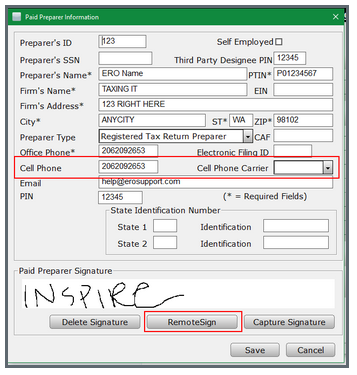
4. A new window will show the Remote Signature has been sent successfully.
5. The Paid preparer shall receive a text message (to the cell phone listed on paid preparer info) with a link to click on in order to enter their name and information as it is in the software.
6. Once the process is complete on the Paid Preparer's cell phone, closing the paid preparer info window & opening it should display the acquired signature.