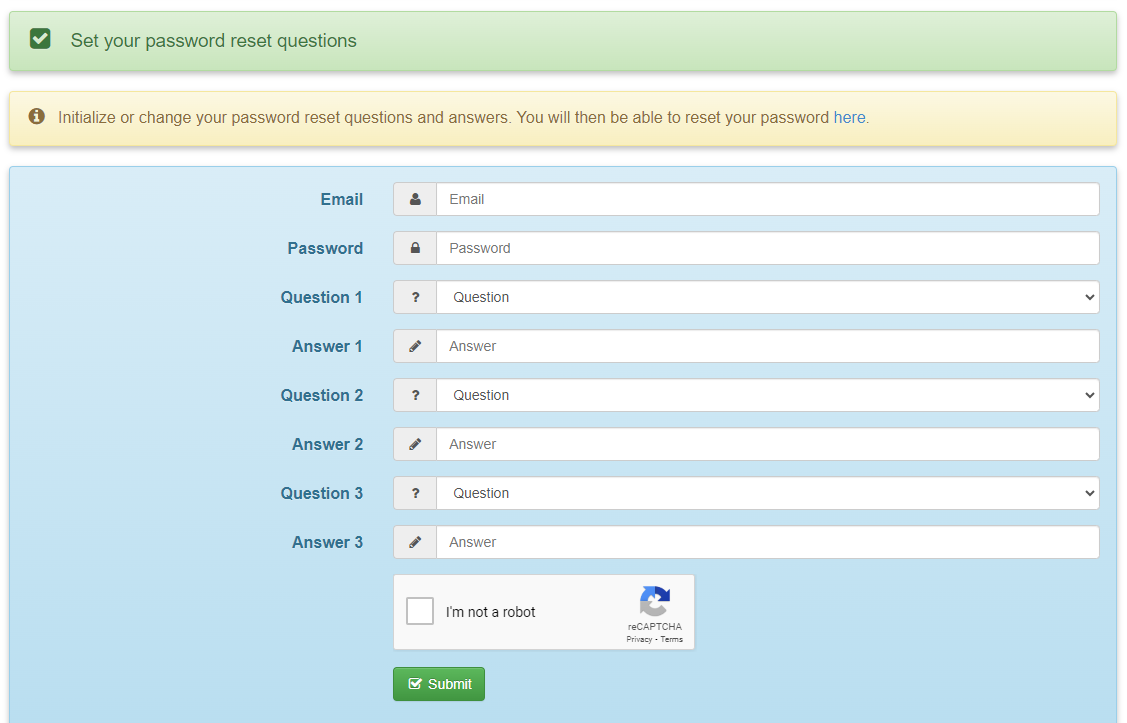
This article provides the links for Hosted Desktop software users to reset their login passwords
There are two servers that host the desktop software in the cloud: East and West servers.
East - https://pwe.mytaxofficeonline.com/?15
West - https://pww.mytaxofficeonline.com/?15
Step 1
The link opens up to the Change Password screen. An initial email will be sent allowing the user to change the assigned password to one of their choosing. However, the security questions will need to be set at this time as well, which will afford them the opportunity to answer questions to reset a forgotten password in the future. See Step 2.
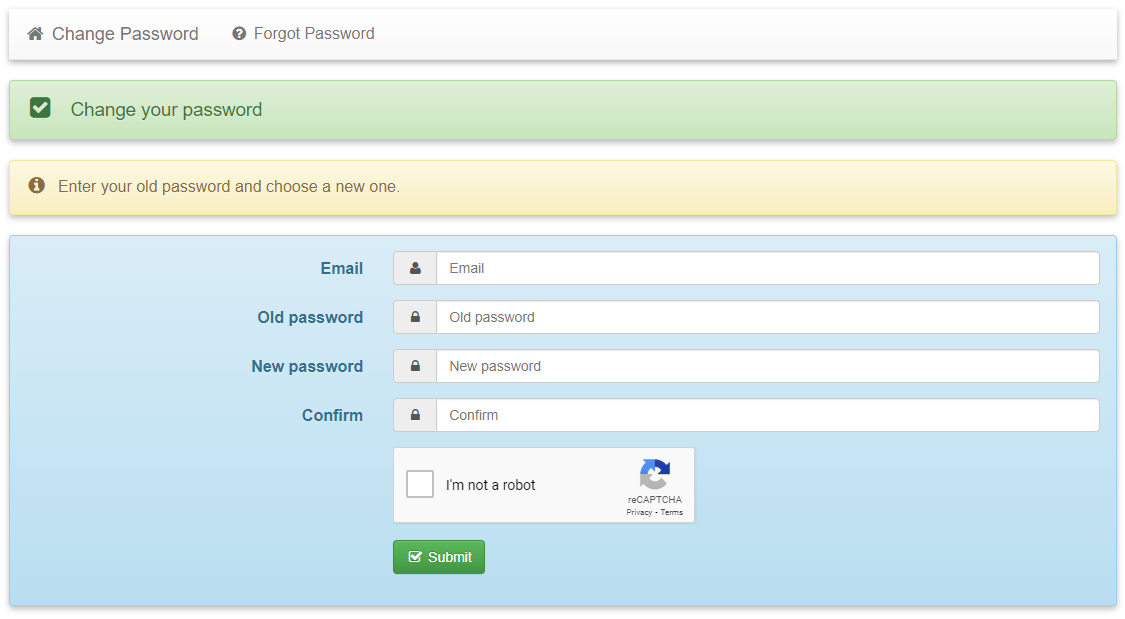
Your password must conform to the following constraints:
- Minimum length: 8
- Minimum number of different types of characters - upper-case, lower-case, numbers, special (!@#$ ...): 3
- Your new password may not be the same as any of your last 3 passwords
- Your new password may not be the same as your login
It is STRONGLY RECOMMENDED that a user set the Security Questions for the password and to take a PICTURE of the screen once the security questions are set and answered. When logging in to reset the password, all the questions will be displayed. They must choose the questions they answered AND provide the answers they entered. Their answers are case sensitive.
TIP: Some users choose ONE answer and use the same answer to all of their security questions to remember it more easily.
Ex: What is your mother's maiden name? TAXES2024
What was the name of your first pet? TAXES2024
What street did you grow up on? TAXES2024
Once the password has been changed, continue by clicking on Forgot Password.
Step 2
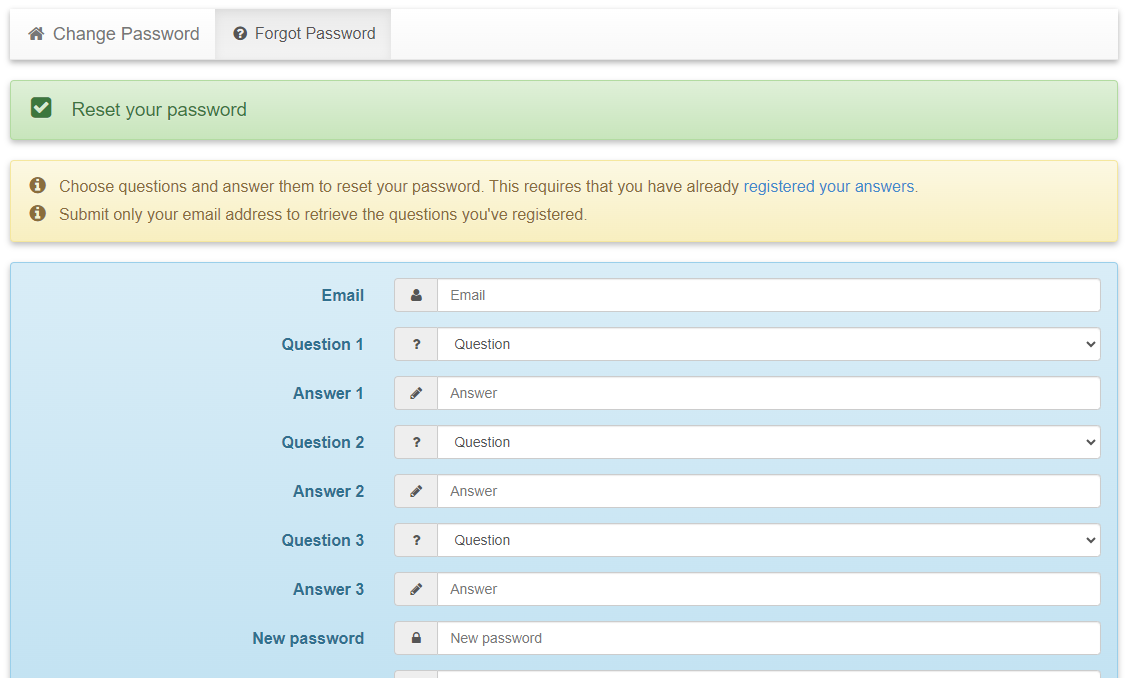
PLEASE NOTE:
If the password was just changed in the current session, there is no need to complete these questions on the screen that opens with the "Forgot Password" tab. PLEASE choose the blue letters that say "registered your answers".