![TSS Logo-RGB-Lime Green-Transparent.png]](https://myerosupport.com/hs-fs/hubfs/TSS%20Logo-RGB-Lime%20Green-Transparent.png?height=40&name=TSS%20Logo-RGB-Lime%20Green-Transparent.png)
UNPLUG THE SIGNATURE PAD BEFORE STARTING THIS PROCESS.
- To download Topaz drivers click here.
- If prompted, click Save to save the file. Once the file has finished downloading, open the file.
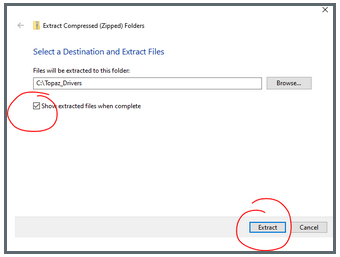
- Click Extract all files, check the Show extracted files when complete checkbox, and then click Extract. A window will pop up showing the extracted files once complete.
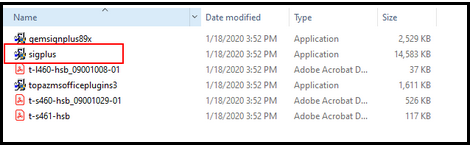
- Double click "sigplus.exe" to begin the installation. If a Security Warning window appears, click Run.
- From the "Welcome" screen, click Next.
- From the "Read Me File" screen, click Next.
- From the "Choose Destination Location" screen, click Next.
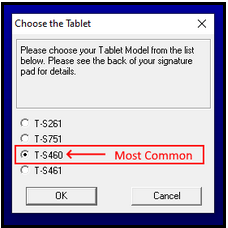
- Click the applicable signature pad model, and then click OK.
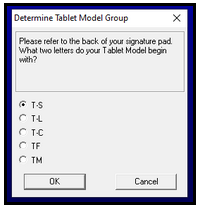
If the model isn't known, it can be found on the bottom of the signature pad.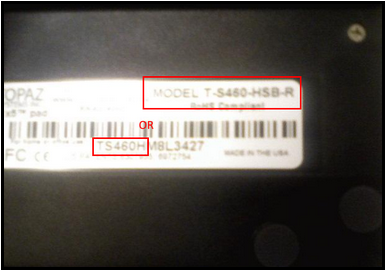
- Select the Tablet Model
- Click the applicable connection type and then click OK.
- If your Topaz Signature Pad connects to your computer via a USB connection, select HSB (USB type).
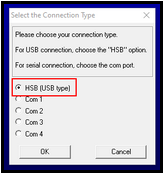
- If your Topaz Signature Pad connects to your computer via a USB connection, select HSB (USB type).
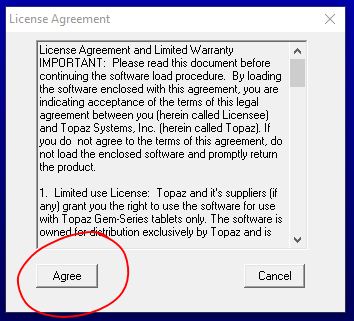
- Review the license agreement and then click Agree.
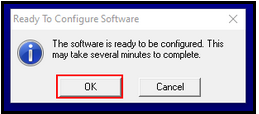
- Select OK to configure.
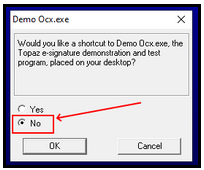
- When the Demo.ocx or Adobe.ocx screen appears, click NO and then click OK.
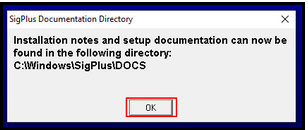
- When the SigPlus Documentation Directory dialog appears, click OK.
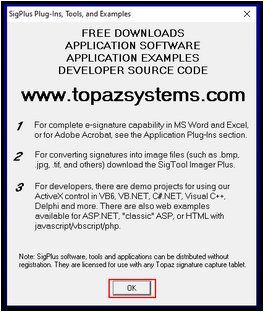
- When the ~Sigplus Plug-Ins, Tools, and Examples dialog appears, click OK.
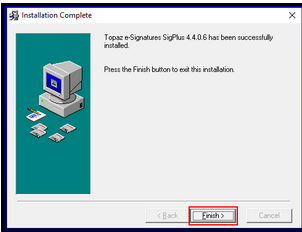
- When the installation is complete, click Finish.
- Now Plug in the Topaz Signature Pad, and Windows installs the necessary drivers.
- Test capture signature within the program. Easiest location: Database > Paid Preparer.