![TSS Logo-RGB-Lime Green-Transparent.png]](https://myerosupport.com/hs-fs/hubfs/TSS%20Logo-RGB-Lime%20Green-Transparent.png?height=40&name=TSS%20Logo-RGB-Lime%20Green-Transparent.png)
Important Note: Effective for TY2020 to current.
Note: Requires appropriate access level.
- From the Work In Progress (WIP) screen.
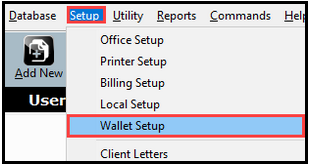
- Click Setup.
- Select Wallet Setup.
- Read and Accept Terms and Conditions to continue with configuration of the Wallet.
- Add the email address that is to receive the invoices & important notifications
- Add New Card (Note: ACH option is available once a card has been vaulted.)
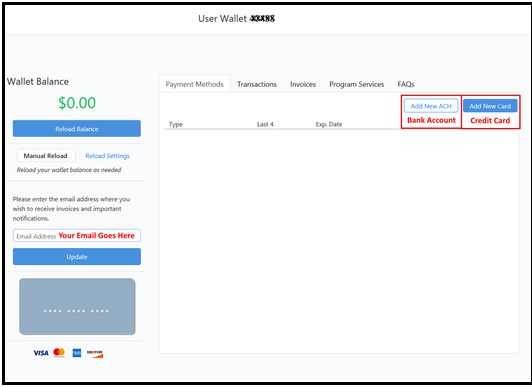
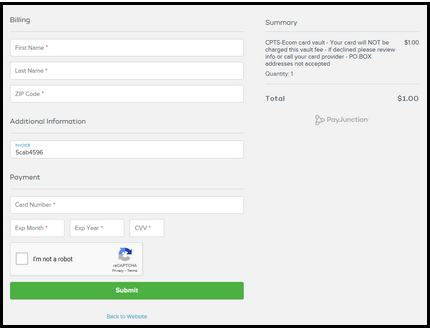
Billing (Credit Card) Screen
Note: When utilizing the CC option, you will NOT need to manually reload funds to cover charges.
ACH (Bank Account) Screen
Note: When utilizing the ACH option, you will need to manually reload funds to cover charges.
1. Enter the Account Info as shown below and click Save ACH.
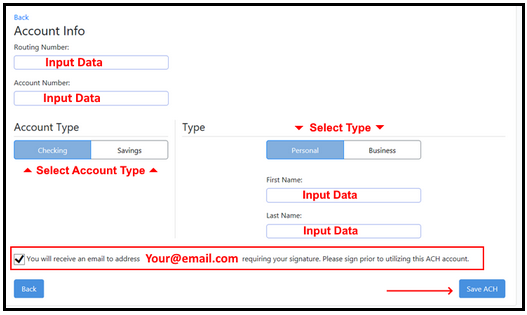
2. An email will be sent to validate the account. Email will come from noreply@payjunctionmail.com with subject "Signature Required – CPTS – Ecom".